Add Google AdSense to WordPress

Add Google AdSense to WordPress
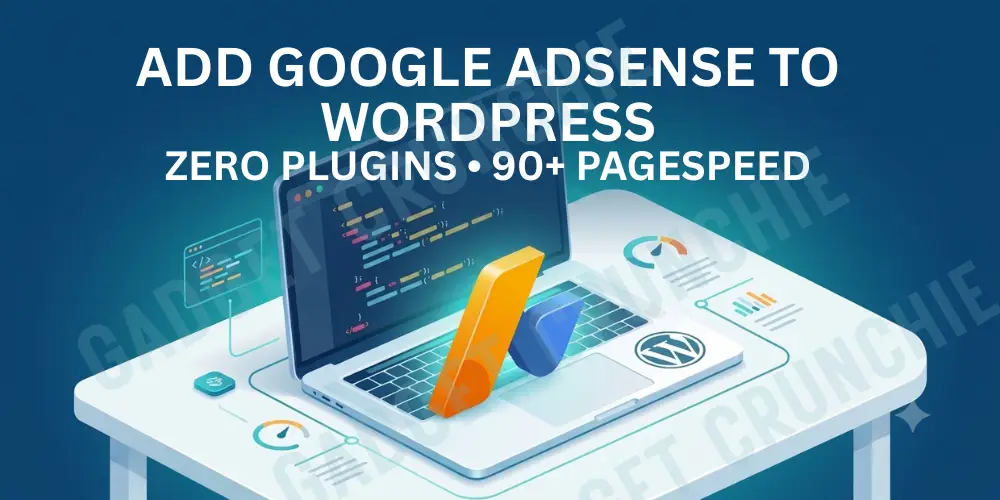
If you are adding Google AdSense to WordPress, skip the plugins. Every AdSense plugin adds bloat, extra HTTP requests, and render-blocking scripts that tank your Core Web Vitals scores.
Plugins like Ad Inserter or Advanced Ads inject JavaScript inefficiently. They load unnecessary CSS, create database queries on every page load, and slow down your Time to Interactive.
Google measures page experience signals for ranking. A slow site means lower ad viewability, fewer clicks, and less revenue. The plugin you installed to make money is actually costing you money.
The manual method is cleaner. You paste the AdSense script directly into your theme or use WordPress hooks. No middleware. No overhead. Full control.
This guide shows the exact developer approach: zero plugins, direct script placement, and proper async loading. Your site stays fast and your ads load correctly.
Put AdSense Code Manually
If you are searching for how to put Google AdSense code in WordPress, the answer is simple. Use your child theme’s functions.php file, not header.php.
Here is why this matters. If you edit header.php directly, a theme update will erase your changes. The child theme file survives every update.
Follow these steps:
Step 1: Log in to your WordPress dashboard. Go to Appearance, then Theme File Editor.
Step 2: Select your child theme from the dropdown. Open the functions.php file.
Step 3: Paste this code at the bottom of the file:
php
add_action('wp_head', 'mza_add_adsense_code');
function mza_add_adsense_code() {
?>
YOUR ADSENSE SCRIPT HERE
<?php
}
Step 4: Replace “YOUR ADSENSE SCRIPT HERE” with the actual AdSense auto ads script from your Google AdSense account.
Step 5: Click Update File to save.
WordPress will now fire the wp_head hook and automatically inject your AdSense script. It loads on every page without any plugin touching it.
Check your site’s source code. You should see the AdSense script inside the head tag.
Use AdSense with WordPress
Understanding how to use Google AdSense with WordPress correctly goes beyond pasting a script. Two things break most setups: a missing ads.txt file and poorly configured Auto Ads placement.
Fix ads.txt first.
Log in to your AdSense account. Navigate to Sites, then click the ads.txt warning. Download the file and upload it to your WordPress root directory via FTP or your hosting File Manager.
Verify it works by visiting: yoursite.com/ads.txt
You should see your publisher ID on the first line. Missing this file triggers AdSense policy warnings and reduces advertiser bids.
Configure Auto Ads carefully.
Inside AdSense, go to Ads, then By Site. Click the pencil icon to open the Ad Review Center. Disable anchor ads and vignette ads initially. These formats interrupt user experience and inflate your bounce rate.
Enable only in-page ads first. Monitor your layout for two weeks. Then expand formats gradually based on performance data.
Optimize for Core Web Vitals
Manual AdSense implementation keeps your DOM tree clean. No plugin wrapper divs, no inline styles injected by third-party code, and no redundant script tags bloating your page weight.
Solve CLS from empty ad blocks.
Cumulative Layout Shift happens when ad containers load without reserved space. The browser reflows the page mid-render. This destroys your CLS score instantly.
Fix it with a CSS aspect-ratio placeholder:
css
.ad-container {
width: 100%;
aspect-ratio: 728 / 90;
overflow: hidden;
background: transparent;
}
This reserves space before the ad loads. The layout stays locked. No shift, no CLS penalty.
For leaderboard ads, use 728×90. For responsive slots, use 16/9 or auto height with a min-height fallback.
Always lazy-load below-the-fold ad containers using the loading attribute or Intersection Observer API.
If your ads trigger DNS lookup failures or slow server response times, check out the PageSpeed Unable to Resolve URL guide to fix upstream DNS bottlenecks affecting your ad delivery speed.
Watch Video: Don’t miss out! Check out my latest YouTube video for in-depth insights and exciting content. Click here to watch ByteScript MZA now!
Manual vs Plugin Method
Two approaches exist for adding AdSense to WordPress. One keeps your site lean. The other trades convenience for performance. Here is the direct comparison.
Plugins abstract the process but add overhead. Manual code gives you full control with zero middleware between your site and Google’s ad servers.
Quick Reference: Method Comparison
Method | PageSpeed Impact | DOM Size | Maintenance |
Manual (functions.php) | Minimal impact | Clean, no extra nodes | Update script once in one file |
Plugin (Ad Inserter) | Moderate slowdown | Adds wrapper divs and nodes | Plugin updates required regularly |
Plugin (Advanced Ads) | High overhead | Heaviest DOM footprint | Frequent conflicts with themes |
The manual method wins on every metric that matters for performance.
For most WordPress sites running lean themes, the functions.php approach adds zero database queries and zero extra HTTP requests per page load.
Pick a manual. Always.
Don’t forget to check out my other step-by-step guides to optimize your digital asset:
- Google & Web Development: Check out my comprehensive guide on how to fix PageSpeed Unable to Resolve URL Easily to bring your site back into the green zone.
- Developer Tools: Best Online React Compiler 2026: Build & Deploy React Instantly
Frequently Asked Questions
Streamline Your Ad Setup
Most WordPress developers overcomplicate AdSense. They install plugins, stack scripts, and wonder why their PageSpeed scores collapse. The problem was never AdSense. The problem was the approach.
Manual implementation solves everything cleanly. One function in functions.php. One ads.txt file in the root. One round of Auto Ads configuration. Done.
Your DOM stays light. Your Core Web Vitals stay healthy. Your ad revenue reflects actual traffic quality, not a bloated setup dragging down viewability scores.
Plugins are shortcuts that create longer problems. Every update cycle introduces conflicts. Every wrapper div adds render weight. Every database query costs milliseconds that you cannot recover.
You now have the full developer workflow. No guesswork, no unnecessary dependencies, no performance trade-offs.
Treat your ad setup the same way you treat your codebase. Keep it tight, keep it documented, and audit it every quarter.
Clean code earns better. That is the only takeaway that matters.