
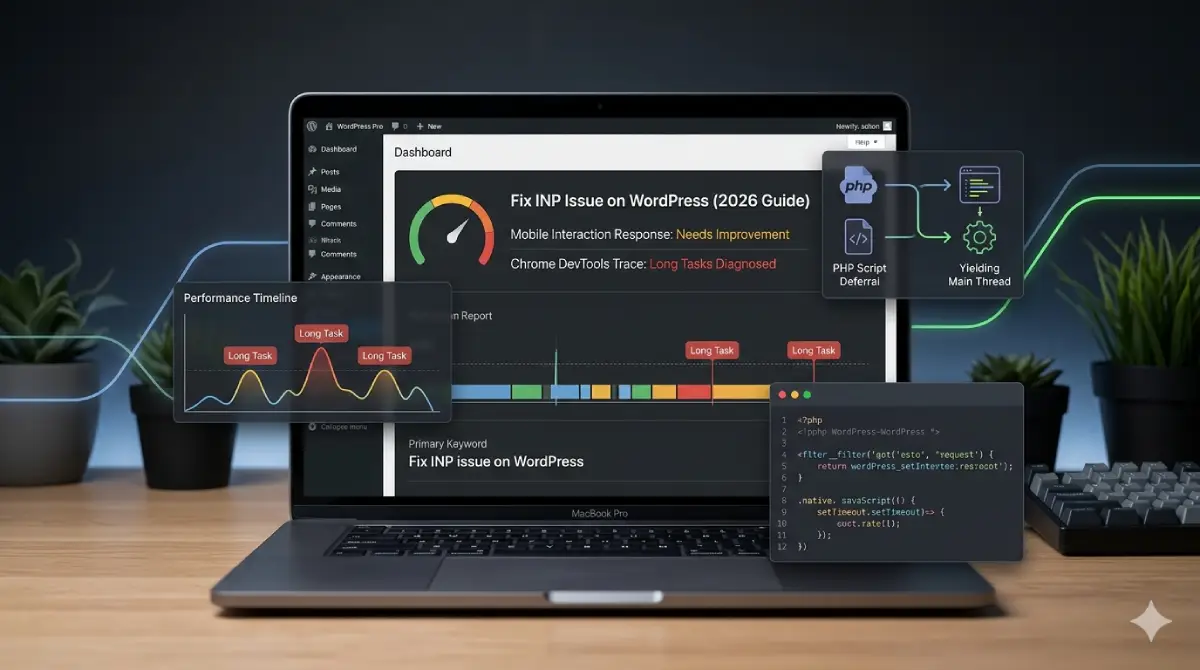
How to Fix PageSpeed Unable to Resolve URL Easily

Fix PageSpeed Unable to Resolve URL
Site Live, Google Blind? Let’s Fix It.
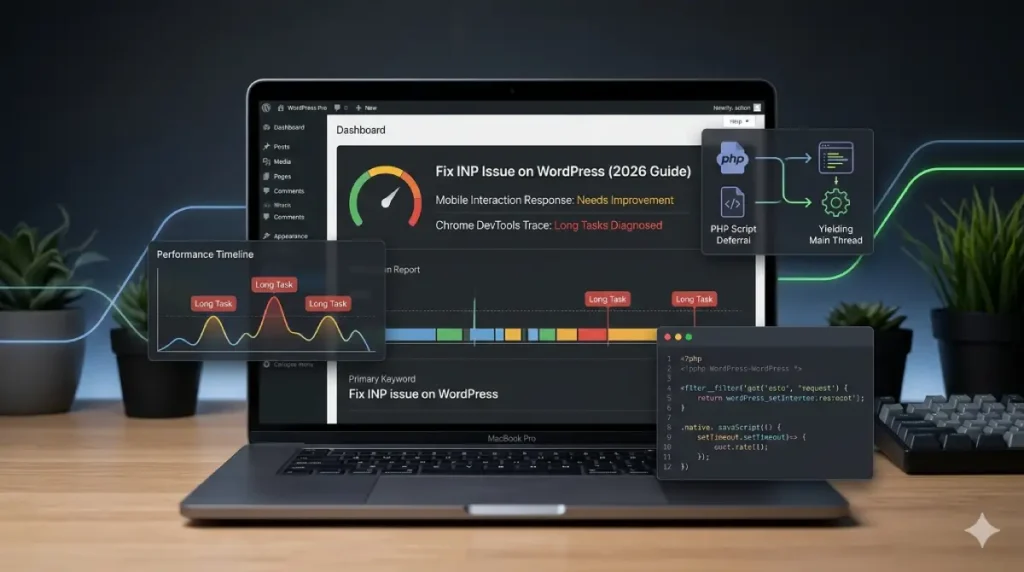
When my site opened fine but failed the speed test, I realized I was dealing with a hidden DNS conflict. Here is my exact, zero-fluff breakdown to fix PageSpeed issues, resolve the backend loop, and restore a 90+ green score in minutes.
💡Developer’s Note: If you are building a full-scale website, the Core Web Vitals Case Study can help optimize your code’s production speed by 60%!
The Browser Lie
Visible to You, Hidden to Google
My site loaded perfectly. Every time I typed the URL into Chrome, the page came up fast and clean, so I assumed everything was fine on the backend. What I did not know was that my browser had already cached the DNS resolution and was skipping the lookup entirely on every visit.
When I ran PageSpeed Insights and saw “Unable to resolve URL,” I was confused because the site was clearly live. PageSpeed Insights is an external crawler that performs a completely fresh DNS lookup from Google’s servers each time it runs. It was hitting a wall that my browser never showed me.
1. The CNAME Culprit
Fix Cloudflare Routing
When I migrated hosts, the www subdomain lost its correct routing path. My root domain resolved fine, but the www version had no valid CNAME pointing back to it, so Google’s crawler was sending requests into a dead end. Adding the following record in Cloudflare fixed it immediately.
Type | Name | Target | Proxy Status | TTL |
|---|---|---|---|---|
CNAME | www | yourdomain.com | Proxied (Orange Cloud) | Auto |
2. The IPv6 Conflict
Clean Stale Records To Fix Pagespeed

When I switched hosting providers, the old AAAA records stayed sitting in my Cloudflare DNS panel untouched. External crawlers like PageSpeed Insights attempt IPv6 resolution first, and those stale records were pointing to a server I no longer use. Removing them forced all traffic back through the correct IPv4 path.
- Log in to Cloudflare and open the DNS Records panel for your domain.
- Filter by type and locate every AAAA record tied to your root domain and www subdomain.
- Delete any AAAA record that points to your old hosting provider’s IP address.
- Run PageSpeed Insights again and confirm the “Unable to resolve URL” error is gone.
3. The SSL Redirection Loop
Mismatched Encryption Modes
When Cloudflare’s SSL redirection mode is set to Flexible and my origin host already enforces HTTPS, the request bounces between the two in an endless redirect loop. My browser handled it silently because it cached the final resolved state after the first successful load.
PageSpeed Insights starts completely fresh every time, so it followed that loop until the connection timed out and threw the URL error. Switching Cloudflare’s SSL redirection setting from Flexible to Full (Strict) under SSL/TLS in the dashboard resolved the conflict immediately and stopped the loop at its source.
Bonus: 90+ Score Without Redis
LiteSpeed Optimization Secrets
After fixing the DNS and SSL issues, I pushed my PageSpeed score past 90 on a basic shared hosting plan using nothing but LiteSpeed Cache’s built-in settings. Enabling JS Defer moves render-blocking scripts out of the critical load path, and switching heavier third-party scripts to Delay holds them back until the user actually interacts with the page, which directly optimizes your INP (Interaction to Next Paint) metric.
I also ran the database optimization tool inside LiteSpeed Cache to clear out post revisions, transient records, and orphaned metadata that were quietly bloating every query. Those three changes alone took my Largest Contentful Paint from a failing red into a solid green without touching a single line of code.
Don’t forget to check out my other step-by-step guides to optimize your digital asset:
- Essential Roadmap: Design Website for Beginners: The Complete Beginner’s Handbook
- Developer Tools & Web Stacks: Want to see how these architectures operate in action? Explore The Role of APIs in Web Development: A Real Shopify Case Study to learn how to build decoupled, fast-loading, and high-converting storefronts.